Authentication
Overview
To transfer files to and from a FileCatalyst Server, users must be authenticated. By default, an internal database (called 'internalDB' on this page) allows administrators to create user accounts. internalDB may never be removed, but as long as another service is available, it may be disabled. External authentication services are added and may be edited. With "auto provisioning" enabled, users coming through external authentication services will have a parallel user created on the internalDB for persistent storage.
In addition to providing a dialog for adding a "New Directory Service", this configuration page shows all configured services in both "Enabled" and "Disabled" states, and allows the administrator to set priority for authentication services. Using this system, incoming credentials will be attempted against enabled services in a specified order.
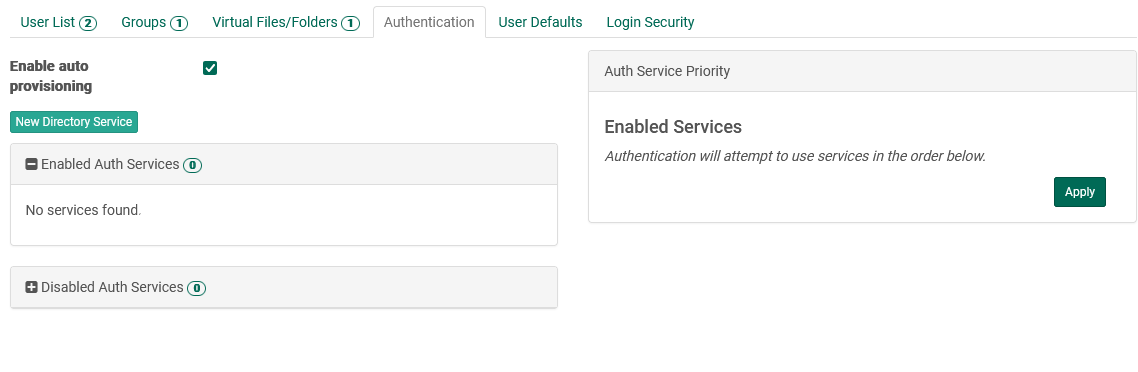
When adding a new directory service, or viewing an enabled or disabled service, a number of configuration fields are available. Each service has a "Type" of either Active Directory or Open LDAP. The administrator sets a label of their choosing. The URL and port combine to form the remote endpoint for the authentication service. Finally, both Active Directory and Open LDAP services require a context string, created and provided by your service administrator.
To remove a configured service, first disable it, then select it in the Disabled Auth Servicespanel. Once selected, a trashcan icon appears; clicking the icon removes the service permanently.
To set priority on services, they must first be configured. Disabled services may be enabled in the "Auth Service Priority" panel, which also adds them to bottom of the priority chain. Once added, the order may be modified using the arrow icons to move a service up or down in priority, with services at the top having highest priority.
Any changes to LDAP configuration must be sent to the server first (Apply button) before they can be tested or used by FileCatalyst server.
Supported Authentication Services (LDAP, RDBMS, PAM)
In addition to the internal user definitions, FileCatalyst Server allows the integration of LDAP servers for user management. This allows easy integration into existing corporate infrastructures, and allows users already defined in a corporate environment to be auto-provisioned.
Two different types of LDAP databases are supported by FileCatalyst server: OpenLDAP and Active Directory. Both can support multiple context strings, allowing easy integration on even complex corporate structures. LDAP queries over SSL (ldaps://, default port 636) are supported for secure encrypted communication between the FileCatalyst server and the remote authentication service. Additionally, the FileCatalyst Server can support multiple instances of both Active Directory and LDAP services.
Service Switch
The service switch defines which order FileCatalyst Server will query authentication services to validate a user/password pair. The syntax is similar to the nslookup switch on Unix systems, and is configurable by the Authentication Wizard (Setup button).
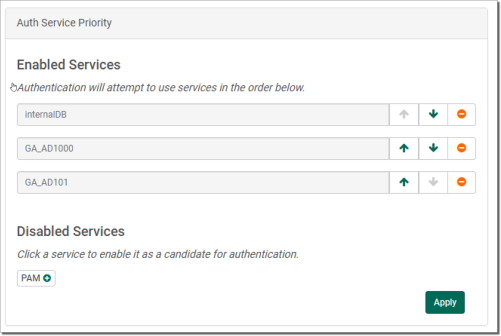
Acceptable values are combinations of:
- "internalDB"
- "OpenLDAP"
- "ActiveDirectory"
- "db"
- "PAM"
Enable Auto-Provisioning
If OpenLDAP or Active Directory has been selected as an authentication service, the administrator can configure the server to automatically create users which already exist in the remote authentication service the first time they attempt to log in. If this is disabled, users must explicitly be created by an administrator before being granted access to the server.
User accounts that are auto provisioned will be created using settings listed under the User Defaults tab.
If auto provisioned users should use a home directory found in the LDAP service, the administrator must edit the fcconf.conf file and specify the name of the appropriate parameter (for example, homeDirectory) using the key FCServer.server.config.LDAP.homedir.attribute
OpenLDAP and Active Directory Configurations
Any changes to LDAP configuration must be sent to the server first (Apply button) before they can be tested or used by FileCatalyst server. For step by step LDAP configuration and examples, start the Authentication Setup Wizard (Setup button).
Verify Directory Services Online
Tests if remote directory services (OpenLDAP and/or Active Directory) are currently on-line and available to the FileCatalyst server. Used primarily to verify that the port/IP have been properly configured.
Test Authentication
Test complete authentication process on the FileCatalyst server. Administrator must provide a username/password pair. Server logs during the authentication process are output to capture trace and error logs.
Installing an SSL Certificate
The following is a breakdown of how to configure LDAPS on the various operating systems supported by the FileCatalyst Server
Windows
- Set up the LDAP server or Active Directory server with your certificate according to your organization's particulars.
-
Copy the certificate authority file into the FileCatalyst Direct Server directory. Using default installation paths, your command will look like this:
copy "c:\Program Files\FileCatalyst Server\jre\lib\security\cacerts" "c:\Program Files\FileCatalyst Server\"
-
Copy the certificate file(s) onto the FileCatalyst Direct server directory. This must be an X.509 certificate format.
copy "c:\mycertificate.crt" "c:\Program Files\FileCatalyst Server\"
NOTE:For Active directory servers, the certificate is normally found on the root (c:\) directory.
-
Import the LDAP server certificate key into authority file using Keytool, which is distributed with JAVA.
"c:\Program Files\FileCatalyst Server\jre\bin\keytool.exe" -import -alias <myldapserver> -file <mycertificate.crt> -keystore "c:\Program Files\FileCatalyst Server\cacerts"
NOTE:Replace values represented by <> brackets with appropriate values. The "alias" is arbitrary and can be any easy-to-remember value. You will be prompted for a keystore password. By default, cacerts has a password of "changeit". Example import command:
-
Insert the authority file keystore into fcconf.conf. Open fcconf.conf in an editor and modify the appropriate line as follows:
FCServer.server.config.LDAP.ssl.selfsignkeystore=c:/Program Files/FileCatalyst Server/cacerts
Linux
The following commands must be executed via the Linux terminal with a user account with sudo privileges for installing the FileCatalyst Server. In the examples, the certificate authority file is "cacerts," part of the JVM/JRE directory, as seen in step 2. Set up the LDAP server or Active Directory server with your certificate according to your organization's particulars.
- Set up the LDAP server or Active Directory server with your certificate according to your organization's particulars.
-
Copy the certificate authority file into the FileCatalyst Direct Server directory. Using default installation paths, your command will look like this:
cp /opt/utechsoft/server/jre/lib/security/cacerts /opt/utechsoft/server
-
Copy the certificate file(s) onto the FileCatalyst Direct server directory. This must be an X.509 certificate format.
cp /tmp/mycertificate.crt/opt/utechsoft/server
NOTE:For Active directory servers, the certificate is normally found on the root (c:\) directory. You will have to upload your Directory Server certificate into a temporary folder of your Linux system (such as /tmp):
-
Import the LDAP server certificate key into the authority file using Keytool, distributed with JAVA.
cd /opt/utechsoft/server
./jre/bin/keytool -import -alias <myldapserver> -file <mycertificate.crt> -keystore cacerts
NOTE:Replace values represented by <> brackets with appropriate values. The "alias" is arbitrary and can be any easy-to-remember value. You will be prompted for a keystore password. By default, cacerts has a password of "changeit". Example import commands:
-
Insert the authority file keystore into fcconf.conf. Open fcconf.conf in an editor and modify the appropriate line as follows:
FCServer.server.config.LDAP.ssl.selfsignkeystore=/opt/utechsoft/server/cacerts
Authentication Setup Wizard
Select Authentication Services
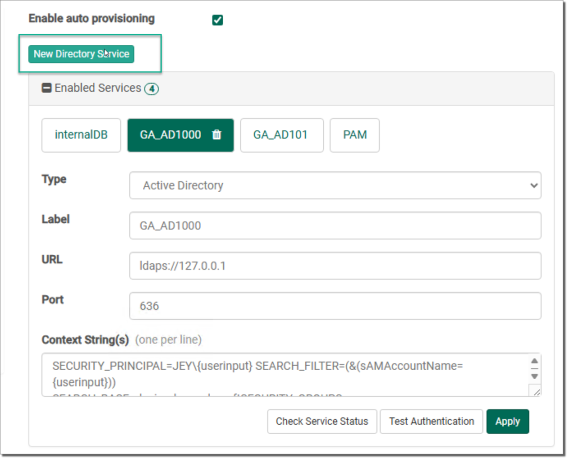
One or more authentication services may be selected for FileCatalyst Server. If an OpenLDAP or Active directory server is selected, you have the additional option of enabling users found on these remote authentication services to be auto provisioned.
OpenLDAP
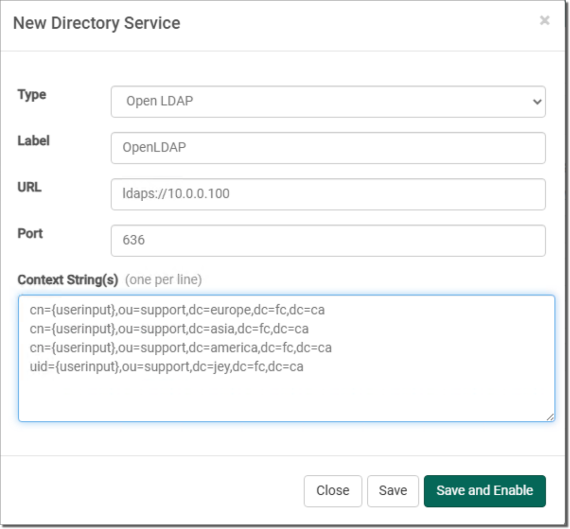
OpenLDAP URL and Port
Enter the URL and Port Number of the server to connect to. The URL must start with "ldap://" or "ldaps://". By default, LDAP servers use port 389 for regular LDAP connections, and 636 for LDAP over SSL connections.
Once the certificate is a TrustStore, manually edit the FileCatalyst Server fcconf.conf file and add the following line:
FCServer.server.config.LDAP.ssl.selfsignkeystore=TrustStore.filename
Context Strings
Context strings are required for LDAP queries to uniquely identify a user in the repository. They are templates for the queries. The LDAP driver requires that curly brackets "{userinput}" exist in the context string, as these will be removed and replaced with the username during the login process. The FileCatalyst Server will try each context string, one at a time, until it finds one that works for the user being queried. Context strings are matched against configured LDAP dn values. Therefore, each context string must match the intended dn values exactly.
For example, If the LDAP server is configured with dn values formatted such as
dn: cn=victor,ou=People,dc=utechsoft,dc=com where victor is a username, then the matching context string must be cn={userinput},ou=People,dc=utechsoft,dc=com.
Alternative dn formats may use a different RDN (relative distinguished name) syntax for the username instead of cn= (for example, uid=victor). Configure your context string(s) appropriately.
Multiple context strings (one per line) can be entered for LDAP queries to satisfy more complex organizations. Configuring specific distinguished names also allows organizations to limit access to the application to only a subset of users where required. To optimize performance it is best to list multiple context strings in order of most preferred or most prevalent matching strings first.
Active Directory
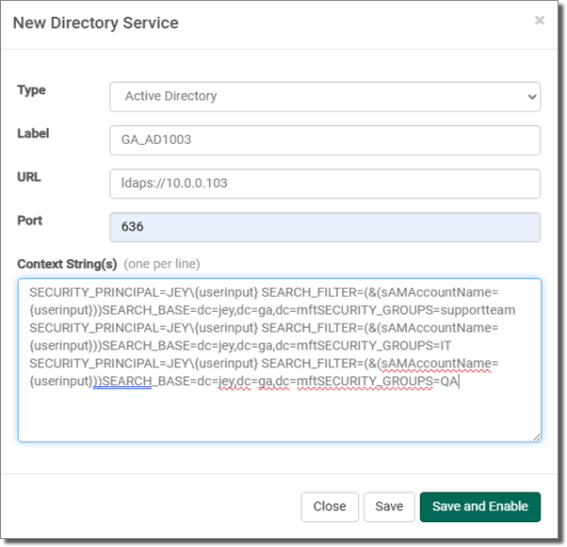
Active Directory URL and Port
Enter the URL and Port Number of the server to connect to. The URL must start with "ldap://" or "ldaps://". By default, LDAP servers use port 389 for regular LDAP connections, and 636 for LDAP over SSL connections.
Active Directory Context Strings
Context strings are required for Microsoft Active Directory to uniquely identify a user in the repository. The LDAP driver requires that curly brackets "{userinput}" exist in the context string to be replaced with the user name during the login process.
Values normally modified:
- enter the user domain
- enter the search base (identifies your organization)
- fill in the security group (to limit access to subset of users)
Multiple context strings (one per line) can be entered for LDAP queries to satisfy more complex organizations. Security groups in Active Directory can optionally be entered to restrict access to FileCatalyst to a subset of users.
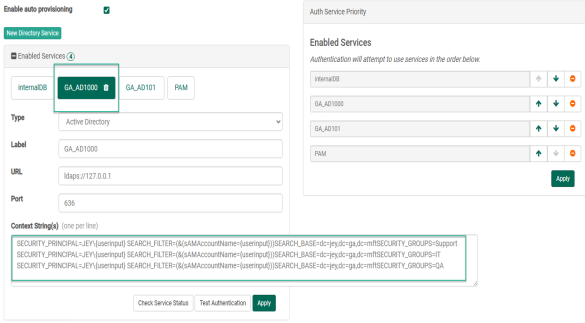
Active Directory Authentication Service Switch
This switch determines the order in which the authentication services are called. By default, FileCatalyst Server requires a positive authentication from only one authentication service to accept an incoming user connection.
Active Directory Limitations
The names of security principal objects can contain all Unicode characters except the special LDAP characters defined in RFC 2253. This list of special characters includes: a leading space; a trailing space; and any of the following characters: # , + " \ < > ;
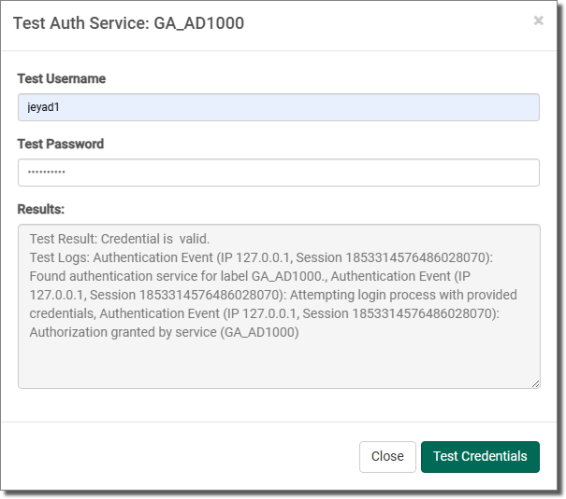
Test LDAP Authentication
The complete authentication process is validated on the FileCatalyst server. Administrator must provide a username/password pair. Server logs during the authentication process are output to the dialog box to capture any issues with the login procedure. This is the preferred method of validating authentication services.
Multiple Disjointed Directory Services
For organizations with multiple ActiveDirectory or OpenLDAP servers, it is normally best practice to configure the directory services to point to each other, allowing one AD or OpenLDAP server to authenticate any user within the organization.
If this is not possible, FileCatalyst does have the ability to support multiple ActiveDirectory or OpenLDAP servers. This must be done by editing fcconf.conf and manually setting LDAP settings for additional LDAP server.
## Example shows two active directory servers being utilized for user authentication.
## Default "ActiveDirectory" values can be edited via GUI
## "ActiveDirectory01" values must be edited in the configuration file

## authentication switch
FCServer.server.config.user.auth=ActiveDirectory ActiveDirectory01 internalDB

## Default AD server. These values may be edited (as before) in the GUI
FCServer.server.config.LDAP.AD.url=ldaps://192.168.1.99
FCServer.server.config.LDAP.AD.port=636
FCServer.server.config.LDAP.AD.context.00=SECURITY_PRINCIPAL=TEST\\{userinput}SEARCH_FILTER=(&(sAMAccountName={userinput}))SEARCH_BASE=dc=unlimitechSECURITY_GROUPS=FCUsers

## ActiveDirectory01. Name in authentication switch MUST START WITH either
##"ActiveDirectory" or "OpenLDAP" to be valid, plus an additional label ("01" in this example)
FCServer.server.config.LDAP.AD.01.url=ldap://10.1.1.99
FCServer.server.config.LDAP.AD.01.port=389
FCServer.server.config.LDAP.AD.01.context.00=SECURITY_PRINCIPAL=DOMAIN2\\{userinput}SEARCH_FILTER=(&(sAMAccountName={userinput}))SEARCH_BASE=dc=unlimitechSECURITY_GROUPS=
RDBMS as Authentication Service
Organizations where user/password information in stored in relational database (for example, MySQL, Oracle), FileCatalyst can be configured to utilize JDBC drivers and query user tables to validate user/password pair.
This must be done by editing fcconf.conf and manually directory services. Multiple databases may be utilized for authentication.
## Example shows a MySQL and Oracle servers being utilized for user authentication.

## authentication switch
# FCServer.server.config.user.auth=db db01 internalDB

# FCServer.server.config.auth.db.authenticationquery=SELECT username FROM users WHERE username='{username}' AND password='{password}'
# FCServer.server.config.auth.db.jdbcpath=C:/Program Files/FileCatalyst Server/lib/mysql-connector-java-5.1.8-bin.jar
# FCServer.server.config.auth.db.jdbcdriver=com.mysql.jdbc.Driver
# FCServer.server.config.auth.db.jdbcconnectionstring=jdbc:mysql://10.1.1.50:3306/schemaname
# FCServer.server.config.auth.db.jdbcuser=mydbuser
# FCServer.server.config.auth.db.jdbcpasswd=mydbpassword
# FCServer.server.config.auth.db.jdbcvalidationquery=SELECT * FROM mysql.db
# FCServer.server.config.auth.db.password_encrypt=false

# FCServer.server.config.auth.db.01.authenticationquery=SELECT * FROM schemauser.usertable WHERE username='{username}' AND password='{password}'
# FCServer.server.config.auth.db.01.jdbcpath=C:/Oracle/XEClient/jdbc/lib/ojdbc14.jar
# FCServer.server.config.auth.db.01.jdbcdriver=oracle.jdbc.OracleDriver
# FCServer.server.config.auth.db.01.jdbcconnectionstring=jdbc:oracle:thin:schemauser/system@10.1.1.46:1521/XE
# FCServer.server.config.auth.db.01.jdbcuser=schemauser
# FCServer.server.config.auth.db.01.jdbcpasswd=system
# FCServer.server.config.auth.db.01.jdbcvalidationquery=SELECT * FROM DUAL
# FCServer.server.config.auth.db.01.password_encrypt=truejdbcpath - JAR for the JDBC driver. This is provided by the database vendor.
jdbcdriver - Class name for the JDBC driver. These are provided by the database vendor.
jdbcconnectionstring - Database connection parameters. This includes server IP, Port, driver type, and database identifier.
jdbcuser - Database credentials required to log into the database.
jdbcpasswd - Database credentials required to log into the database.
jdbcvalidationquery - Performed to ensure that the JDBC connection is still up. This should be a quick running query that can be periodically run by the JDBC pool (for Oracle, you can use "select * from dual").
password_encrypt - Used when the user passwords are encrypted as an MD5 hash on the database already. Setting this value to true will enable the MD5 hash value to be sent over the JDBC connection in the query instead of the plain text password (default false).
OpenLDAP with Security Filters
Organizations that use an implementation of LDAP such as OpenLDAP or SunONE directory services can specify a security filter against which users will be authenticated. The authentication involves two steps. The first step is to make sure the user can bind with the username and password provided. The second step is to check if the user meets the security filter defined in the context.
To define a security filter, append SECURITY_FILTER at the end of the context string.
This must be done by editing fcconf.conf or manually entering it through the user interface.
# To enable security filtering searches, append SECURITY_FILTER={filter string} at the end of the context string.
# {filter string} is to be replaced by the string you wish to filter users. Context 3, 4, and 5 will show examples of this.
# EXAMPLES:
# FCServer.server.config.LDAP.open.context.00=displayName={userinput},dc=myCompanyName,dc=com
# FCServer.server.config.LDAP.open.context.01=mail={userinput},dc=myCompanyName,dc=com
# FCServer.server.config.LDAP.open.context.02=sn={userinput},dc=myCompanyName,dc=com
# FCServer.server.config.LDAP.open.context.03=displayName={userinput},dc=myCompanyName,dc=comSECURITY_FILTER=(&(mail={userinput})(uid=100))
# FCServer.server.config.LDAP.open.context.04=mail={userinput},dc=myCompanyName,dc=comSECURITY_FILTER=(&(mail={userinput})(cn=admin))
# FCServer.server.config.LDAP.open.context.05=sn={userinput},dc=myCompanyName,dc=comSECURITY_FILTER=(&(mail={userinput})(admin=true))
Unix PAM as Authentication Service
When installing the FileCatalyst Server on a UNIX machine, you can configure the application to authenticate against the operating system using native PAM interface. This allows you to configure users either on the OS (/etc/passwd + /etc/shadow files) or point to another authentication system (for example, NIS server).
Authentication switch should have the PAM in it to direct calls.
FCServer.server.config.user.auth=PAM internalDB
# - This setup means that user lookup is done using PAM first.
# - If the user is not found or password does not match, an additional search is
# performed on an the Files.
Configuration of PAM on the system requires several steps to prepare the operating system to accept calls from the FileCatalyst Server. Please refer to the JPAM_README.txt and RELEASE_NOTES.txt under the Unix ./jpam/ folder for details.