Transfer
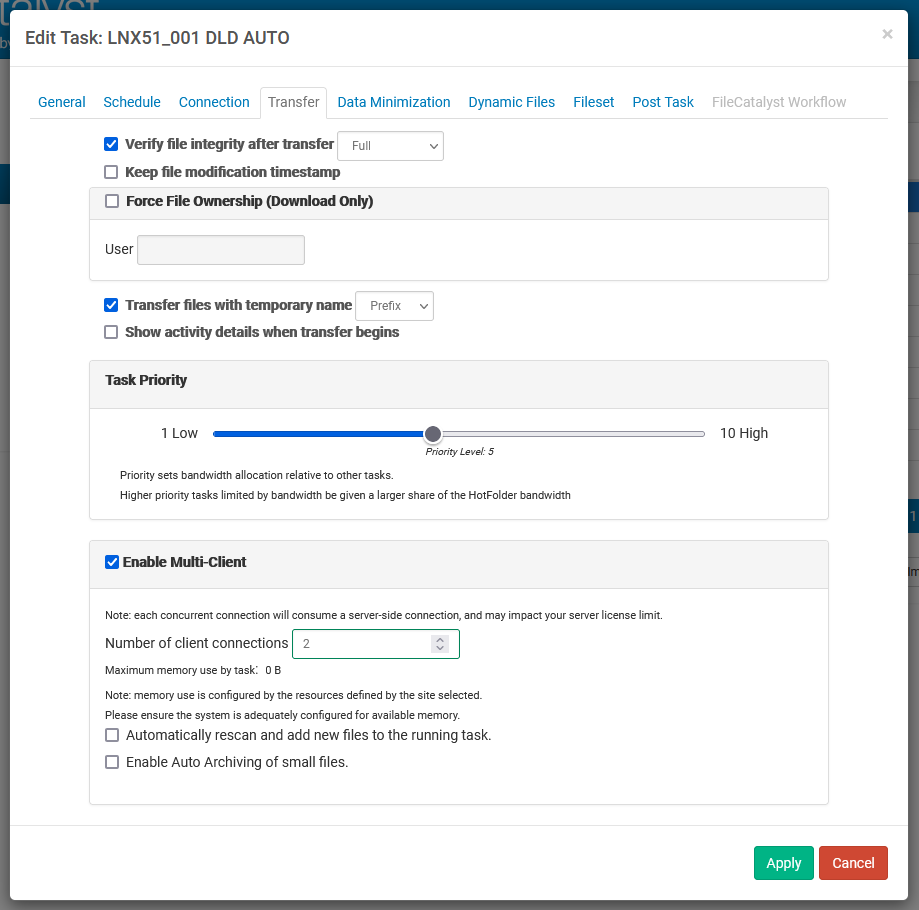
Verify File Integrity After Transfer
During all UDP transfers, as blocks of data are transferred, they are verified using MD5 against the same block in the source file. This is done on the fly, and incurs no delay after a transfer completes. This provides a very high level of protection against corruption. Note that FTP/TCP mode transfers are verified on the fly as well, but it is built into the TCP protocol. FileCatalyst provides the additional option to perform a full MD5 checksum after each transfer instead of on the fly.
By checking the "Verify File Integrity After Transfer" option, integrity of the transferred file will be verified byte by byte on storage using MD5 after the transfer is complete. This option can be used in one of three modes:
Full
This will perform a byte by byte comparison of the entire file when the transfer is complete. Although this consumes less CPU on an ongoing basis, there is a delay between files being transferred as the checksum is calculated. If the files are large, it may cause delays of several seconds or even minutes depending on the speed of the I/O on the sending and receiving machines.
Concurrent
This will open up a separate session to perform checksums without interrupting the file transfer. For very fast transfers, disk I/O bottlenecks (competing between ongoing transfers and MD5 checksums) may result in lowered throughput.
Partial
Partial MD5 verification occurs after the file is completed, however it only compares certain portions of the file, and only at logical intervals that coincide with the transfer characteristics. This vastly decreases the time to perform the MD5 check. Note, however, that although the file is almost certainly intact, the Partial check cannot absolutely guarantee with 100% certainty.
Keep File Modification Timestamp
If this item is selected, the modification date and time will be preserved when files are transferred to the server.
When multi-client is enabled, folders are also maintained. This behaviour is different from our legacy single client transfers. If you desire the legacy behaviour, it can be reverted via setting this system property: unlimited.fc.legacy_timestamp
Force File Ownership
By selecting this option on a download task, all files transferred will have their operating system user ownership set to the value specified.
Transfer with Temporary Name
If this option is enabled, FileCatalyst will always upload or download files using a temporary name, and rename it back to the original name when the transfer is complete and verified. FileCatalyst Server will not report these temporary files when other HotFolder or FTP clients request file lists. This prevents them from downloading partial files. You may choose to either prepend the ".fctmp." prefix, or append the ".tmp" suffix to the files until they are finished transferring.
Task Priority
This allows you to specify the priority of a task. By default, bandwidth is split evenly between all running tasks. Setting the priority of a task will increase/decrease the weight of a task when bandwidth allocation is performed.
Enable Multi-Client (Multiple Concurrent File Transfers)
HotFolder allows a single transfer task to utilize more than one transfer connection in order to push files across concurrently.
Multi-Client is particularly useful when transferring dynamic file sets (where data is being added in real-time to multiple files in a directory). When combined with progressive transfers, multi-client allows multiple growth files (log files, video transcoding, etc) to be sent from one directory.
Multi-Client does not currently support Filecatalyst Workflow. Selecting specifying a Filecatalyst Workflow server will automatically execute the task as a single client transfer.
Automatically Rescan and Add New Files to the Running Task
By default, the HotFolder scheduler will not re-execute a task if it is currently running (only one instance of the same task is allowed to run at a time).
Because multi-file sessions are ideally suited for transfers of growth files (ie: live streaming video) which may take an extended period of time to complete (2+ hour event), rescheduling allows you to rescan a directory even if the original transfer has not yet completed (live video event still on-going). New static files (or growth files) will get picked up by the task at scheduled intervals.
Enable Auto Archiving of Small Files.
This option will group together small files (10 MB or less in size) archiving them and sending them over as a single transfer. Use this feature if your transfers will contain many small files. The maximum size for an individual archive is 100MB, after which a new one will be created. Previous archives are transferred and extracted while new ones are being created.
Keep File Permissions (OSX/Linux/Solaris Only)
When this item is checked, file permissions will be saved when files are transferred.
Multi-Client changes from single client and limitations
Due to the nature of how parallel transferring works, it is highly recommended to use the AutoArchive of Small Files option in Multi-Client. This will keep the overhead of HTTP POSTs to a minimum during a transfer with a larger data set.
Changes from single client
Multi-Client has an added layer of redundancy: if an individual client fails a transfer, that transfer is pushed back onto an internal transfer queue to be attempted by a different client a set number of times before actually failing. This means that in cases where Single Client failed consistently, multi-client may succeed. Multi-Client can use auto archiving, incremental and compression simultaneously. Small files will still be auto archived and use the compression settings, ignoring the incremental while the larger, non archived files, will use incremental and compression. Normally archiving and incrementals are mutually exclusive for single client transfers. Note that while multi-client is enabled, some compression options in the Data Minimization pane will be disabled as they are handled by the auto archiving algorithms.
Limitations
Multi-Client transfers are not compatible with Filecatalyst Workflow so multi-client settings are ignored for transfers to a Filecatalyst Workflow site.